How to install
Download the app
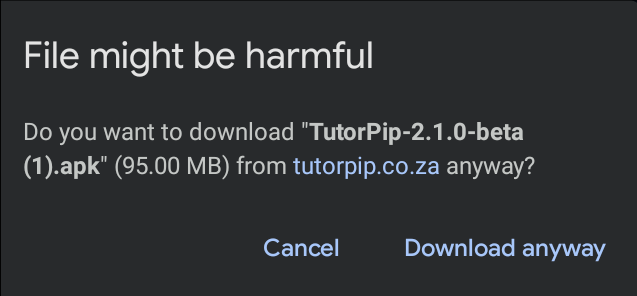
Tap the yellow Download button on your Android phone. The file is called TutorPip-2.3.1-beta.apk. Chrome says File might be harmful: it says this about every app downloaded from a website, not about TutorPip. Tap Download anyway.
Open the file
When it has downloaded, tap Open (or find it under Files → Downloads).
Allow Chrome to install apps (first time only)
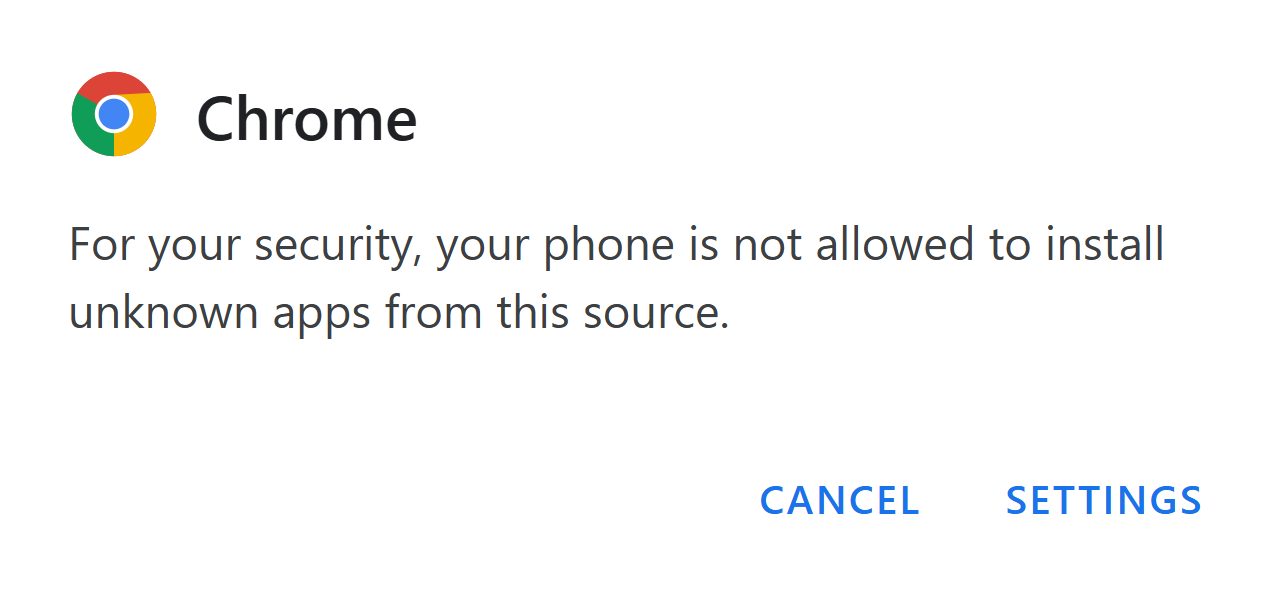
Your phone may say “For your security, your phone is not allowed to install unknown apps from this source”. Tap Settings, switch on Allow from this source, then tap back. You only do this once, and only because TutorPip isn't on Google Play yet.
Tap Install
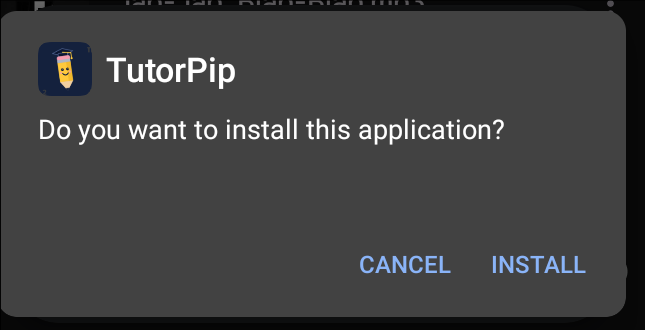
Android asks if you want to install TutorPip. Tap Install.
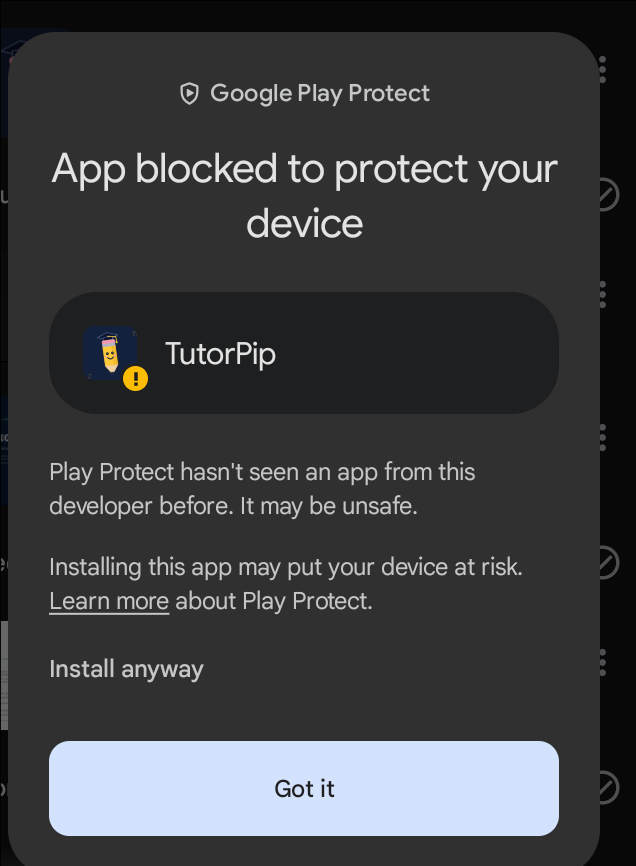
Google Play Protect: tap More details
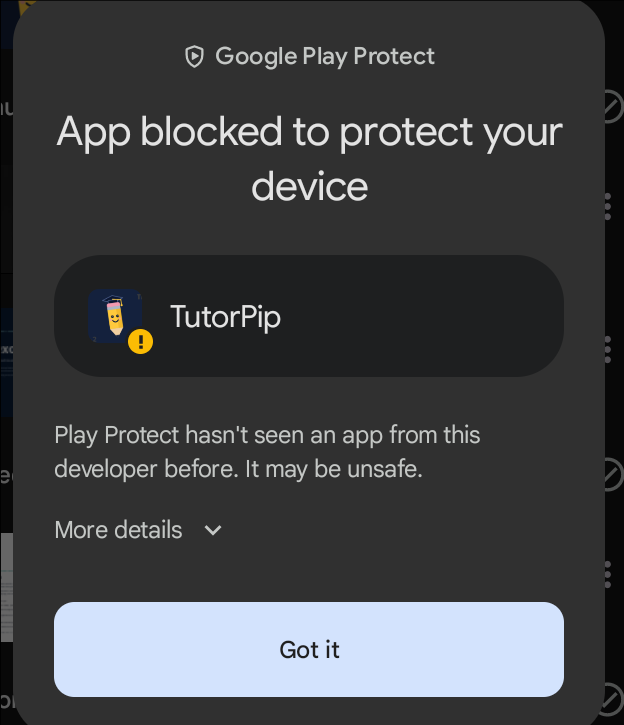
Because TutorPip isn't on Google Play yet, Play Protect says it hasn't seen an app from us before. This is normal for apps installed from a website. Tap More details. Don't tap Got it, that cancels the install.
Tap Install anyway
Tap Install anyway. TutorPip installs in a few seconds.
Open TutorPip and sign up
Open TutorPip, make your parent account and add up to 3 learners. You get your first month of Premium free straight away: unlimited homework help for the whole family.
Questions
I have the first TutorPip beta. What do I do?
The first beta (before November 2026) can't be updated in place. Uninstall it once (press and hold the TutorPip icon → Uninstall), then install from this page and sign in: your learners come back from your backup. After that, TutorPip updates itself from inside the app, see how updates work.
Why isn't TutorPip on Google Play yet?
Google is still reviewing it. Installing from this page is only for the beta. Once TutorPip is on Google Play you'll install and update it from the Play Store like any other app, with none of these warnings, and you keep your learners.
Why does Chrome say “File might be harmful”?
Chrome shows this for every app file downloaded from a website, because it can't check apps that aren't on Google Play. It isn't saying anything is wrong with TutorPip. Tap Download anyway. This step goes away once TutorPip is on Google Play.
Google Play Protect says the app may be unsafe. Is it safe?
Play Protect shows this for any app that isn't from the Play Store yet and comes from a new developer, so the warning is expected. Only download TutorPip from tutorpip.co.za. You don't need to switch Play Protect off.
I don't see “Install anyway”.
Tap More details on the Play Protect message first; Install anyway appears underneath. If you tapped Got it, open the downloaded file again and start from step 3.
My phone says it can't install unknown apps.
Android protects you from installing apps from websites by default. On that message tap Settings, switch on Allow from this source for your browser, then go back and tap Install. You can switch it off again afterwards.
It says “App not installed”.
Check that your phone has at least 200 MB free. If you had a TutorPip test version from somewhere else, uninstall it first: your learners, lessons and parent code are backed up to your account and come back when you log in.
I can't find the downloaded file.
Pull down the notifications and tap the download, or open the Files app → Downloads and tap TutorPip-2.3.1-beta.apk. If you downloaded it more than once, your phone adds a number, like (1), to the name; any copy works.
How do I get updates?
Small updates arrive by themselves when you open the app. For a bigger update TutorPip shows Update now: it downloads the new version and Android asks you to tap Update. You keep everything. See how updates work.
What's free?
TutorPip is free for every grade, Grade RR to 12: the whole practice library with Pip talking, plus 3 homework lessons a week, 1 report-card check a term and 1 learner. Every new account also gets your first month of Premium free, with no card needed. Premium (R49 a month, cancel any time) gives unlimited homework lessons and report-card checks, up to 3 learners, and sharing with the other parent so both phones see the same learners. Nothing is deleted when free Premium ends. Invite up to 3 friends from the app and get a bonus month for each one who joins.
Can both parents use TutorPip?
Yes, with Premium (also during the free first month). In the app go to Settings → Share with another parent and type their name and email. They get an email, sign up or log in to TutorPip with that email and tap Accept. Then lessons, report cards and pocket money show on both phones, whichever phone was used. If Premium ends, sharing pauses and nothing is deleted.
Do you have an iPhone app?
Not yet. TutorPip is for Android phones and tablets for now.
I still need help.
Tap Pip at the bottom of this page to chat with our team (8am to 5pm), or email hello@tutorpip.co.za.